


How to use Muo as stereo speakers

While a single portable speaker can deliver exceptional detail, music is recorded to be experienced with width, depth, and separation, a three-dimensional landscape that requires two distinct channels.
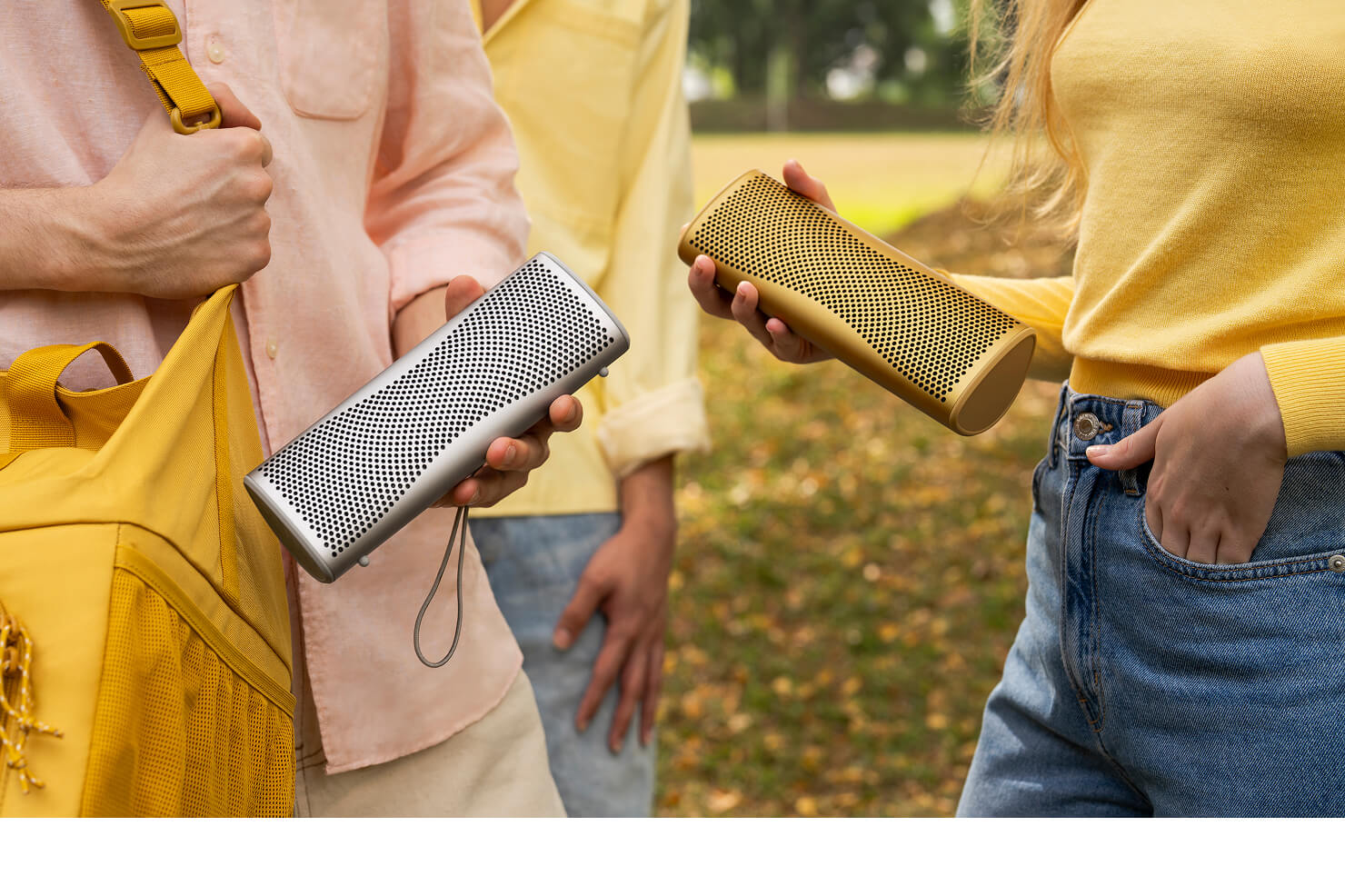
Usually, this experience is confined to the living room. However, with the KEF Muo, we have designed a way to bring that sound with you. By utilising its advanced connectivity to pair two units, you can experience a genuine stereo performance that defies the physical limits of portable audio, transforming into an immersive performance, wherever you are.
1. Why Stereo is Better than Mono
To understand why you should pair your speakers, you must understand the limitations of mono. Mono sound emanates from a single source, which means all instruments and vocals are stacked on top of one another in the centre. While effective for background listening, it lacks the depth and spatial information of the original recording.
Stereo sound, achieved by using two distinct speakers (Left and Right), recreates the artist's intended soundstage. It allows for the ability to hear the guitar on the left, the drums on the right, and the vocals locked firmly in the centre. This creates a three-dimensional acoustic landscape, where the speakers seem to disappear, leaving only the performance.
The Muo disperses sound widely and evenly, ensuring a seamless integration between the left and right channels. You can read more about the acoustic engineering behind this in our blog on the best sounding portable Bluetooth speaker.
Stereo sound, achieved by using two distinct speakers (Left and Right), recreates the artist's intended soundstage. It allows for the ability to hear the guitar on the left, the drums on the right, and the vocals locked firmly in the centre. This creates a three-dimensional acoustic landscape, where the speakers seem to disappear, leaving only the performance.
The Muo disperses sound widely and evenly, ensuring a seamless integration between the left and right channels. You can read more about the acoustic engineering behind this in our blog on the best sounding portable Bluetooth speaker.
2. How to Pair Your Muo Speakers
Follow these simple steps to configure two Muo speakers as a stereo pair:
You are all set to immerse yourself in stereo sound with rich detail and depth.
For a visual guide on how to achieve this, watch our tutorial below:
- Connect the Primary Speaker: First, connect your device to the speaker you wish to use as the Right channel. Press the Bluetooth button to pair it with your phone or tablet as standard.
- Initiate Pairing on the First Speaker: On this same speaker, press and hold the + and Bluetooth buttons simultaneously for 3 seconds. Continue holding until the LED blinks purple and yellow alternately.
- Sync the Second Speaker: Immediately repeat the action on your second speaker. Press and hold the + and Bluetooth buttons simultaneously for 3 seconds, again waiting for the LED to blink purple and yellow alternately.
- Confirmation: The speakers will search for each other. When the top LEDs on both units turn solid blue, the speakers are successfully paired.
- Channel Check: To identify your channels, check the LED colour. The Purple LED indicates the Primary speaker (Right channel), and the Yellow LED indicates the Secondary speaker (Left channel).
You are all set to immerse yourself in stereo sound with rich detail and depth.
For a visual guide on how to achieve this, watch our tutorial below:
3. Maximising Your Portable Setup
For the immersive, high-fidelity soundstage we have described, we recommend pairing a maximum of two Muo speakers. This utilises True Wireless Stereo (TWS) technology to create dedicated Left and Right channels, necessary for precise imaging and depth.
By placing your paired Muo speakers approximately 2 to 3 metres apart, you create a Hi-Fi system that fits in your bag. Whether you are using them to boost your laptop audio or bringing high-quality music to a holiday villa, having a Bluetooth speaker you can pair together ensures you never have to leave the soundstage behind.
However, if your goal is simply to fill a larger space with sound, such as a garden party where volume is priority over separation, you can go beyond a single pair of speakers. Using Auracast™ broadcast technology, it is theoretically possible to connect an unlimited number of Muo speakers.
It is, however, important to note the following:
By placing your paired Muo speakers approximately 2 to 3 metres apart, you create a Hi-Fi system that fits in your bag. Whether you are using them to boost your laptop audio or bringing high-quality music to a holiday villa, having a Bluetooth speaker you can pair together ensures you never have to leave the soundstage behind.
However, if your goal is simply to fill a larger space with sound, such as a garden party where volume is priority over separation, you can go beyond a single pair of speakers. Using Auracast™ broadcast technology, it is theoretically possible to connect an unlimited number of Muo speakers.
It is, however, important to note the following:
- When connecting more than two speakers via Auracast, they will play in unison (all speakers playing the same mono signal), rather than splitting into a stereo array.
- This feature requires an Auracast-compatible source device (currently available on select Android devices, but not iPhone).
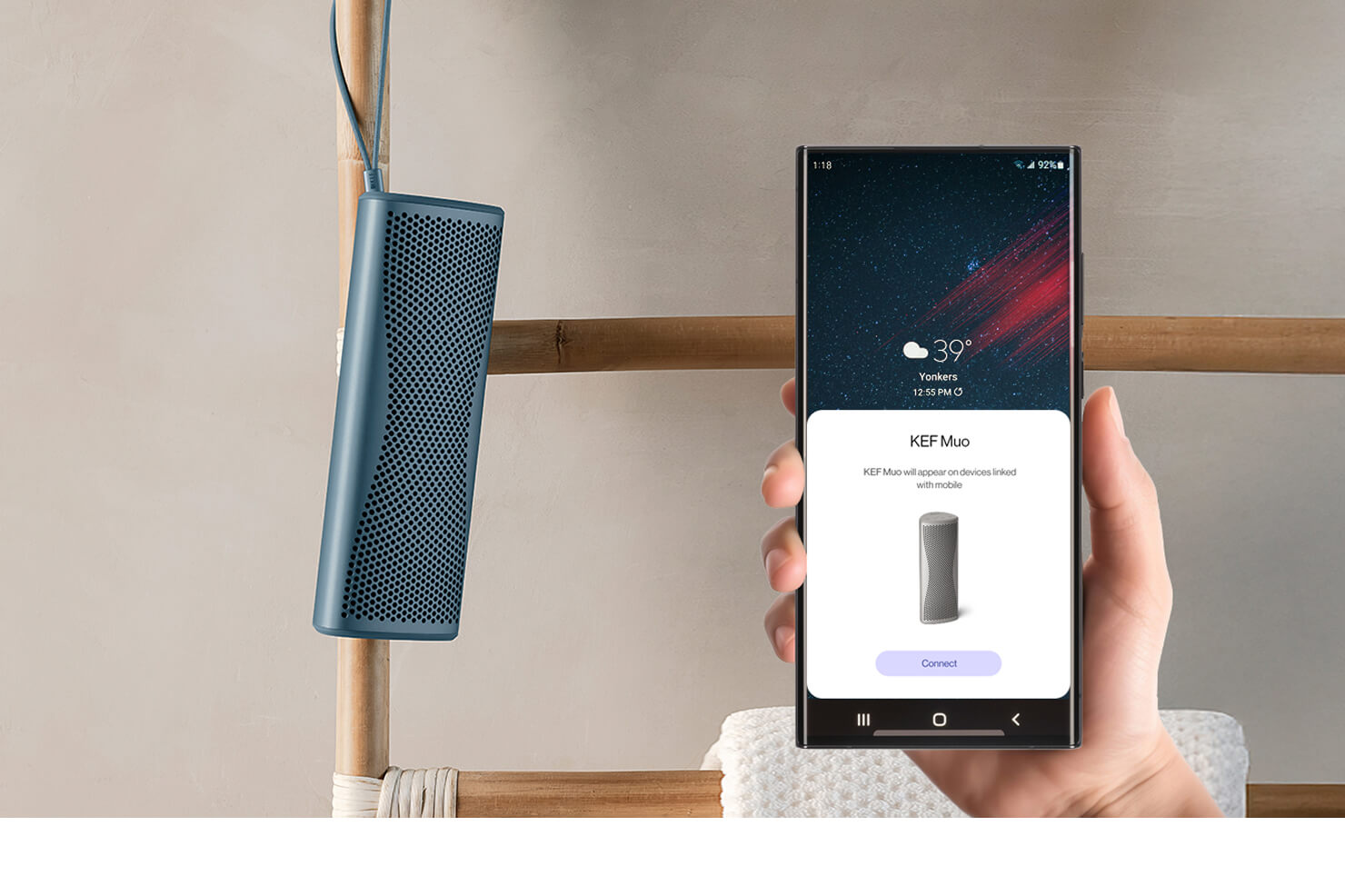
- To enable this functionality, you will need the KEF Connect app.
For more information on the differences in wireless technologies, explore our article on WiFi vs Bluetooth speakers to ensure you have the right setup for your needs.
Explore the KEF HiFi Bluetooth Speaker Collection.
Explore the KEF HiFi Bluetooth Speaker Collection.

